Last updated on 2025-12-25, by
How to Cancel Your Disney Plus Subscription
Summary:
Check out this comprehensive guide if you decide that you no longer need your Disney Plus subscription. To avoid being charged extra by any subscription-based merchant, you’ll learn what steps to take based on the device you use.
Outline
Disney Plus is a well-known streaming service that has a lot of TV shows and movies, mostly from Pixar and Marvel. It quickly became one of the best streaming services, with 50 million users in just a few months after starting in late 2019. The site allows you to download the movies, which is convenient if you like to watch movies offline.
It’s possible that some users prefer to cancel their membership, either because the price goes up or because they are not happy with the download limits in Disney Plus. In this case, the best way to avoid being charged for something I don’t want is to know how to cancel my Disney Plus subscription.
How to Cancel Disney Plus on the Official Website
Depending on where you get your bills, the canceling process is different. You can end your Disney Plus subscription if you bought it directly from Disney Plus.
Step 1. Use a browser on your phone or computer to sign in to your Disney Plus account.
Step 2. Click or tap on your name, then click on Account.
Step 3. In the Subscription area, choose the one you want to use.
Step 4. Press or click on Cancel Subscription.
Step 5. Give a reason for canceling, then finish the process.
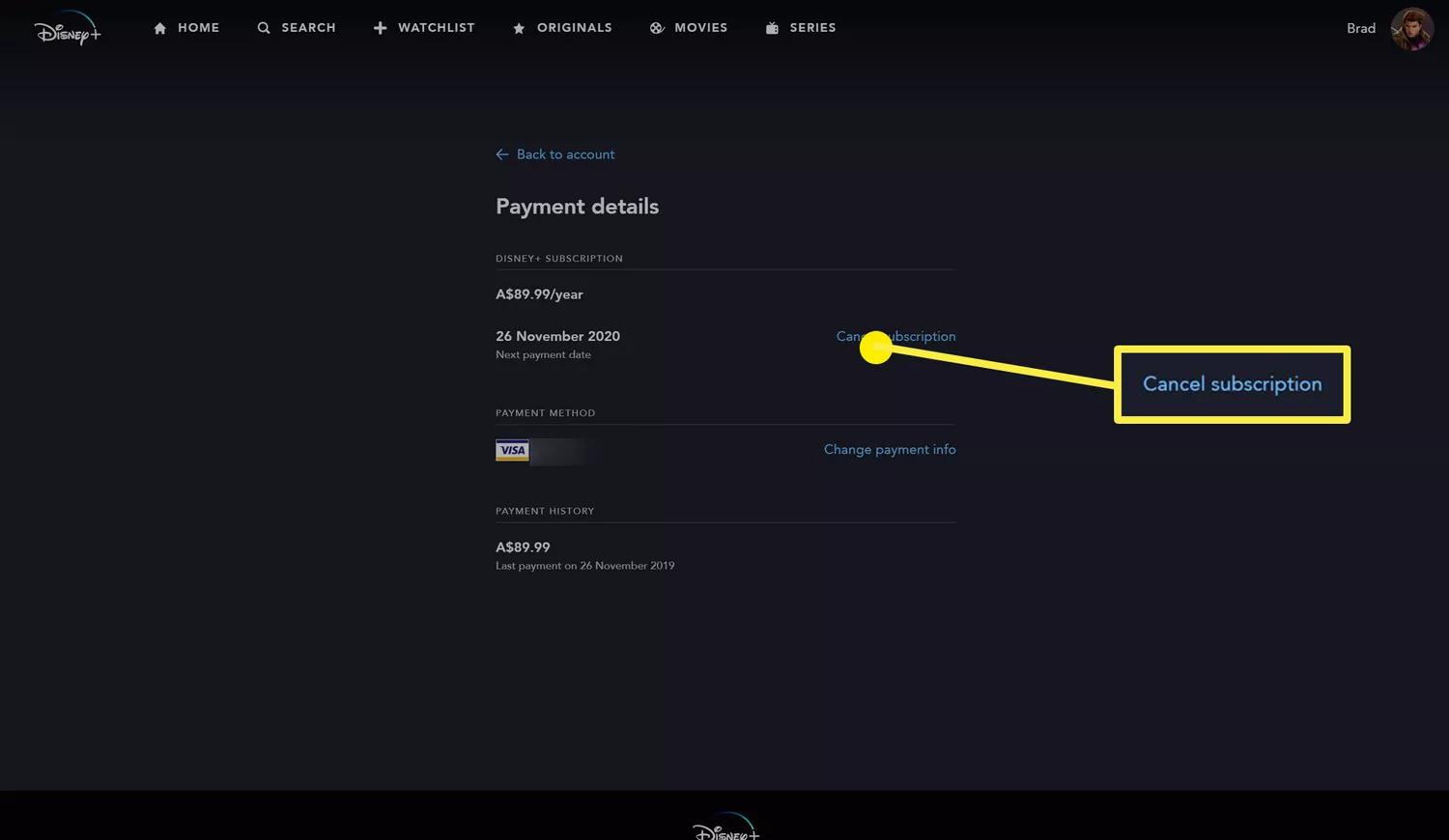
By the way, if you cancel your subscription, it won’t remove your Disney Plus or Disney account. Your name, email address, and other personal data will only be removed from the platform if you delete your account. You can do this in your account settings.
Keep reading for a tutorial on how to stop your Disney Plus account on your phone, TV, Amazon, or Roku.
How to Cancel Disney Plus on iPhone or iPad
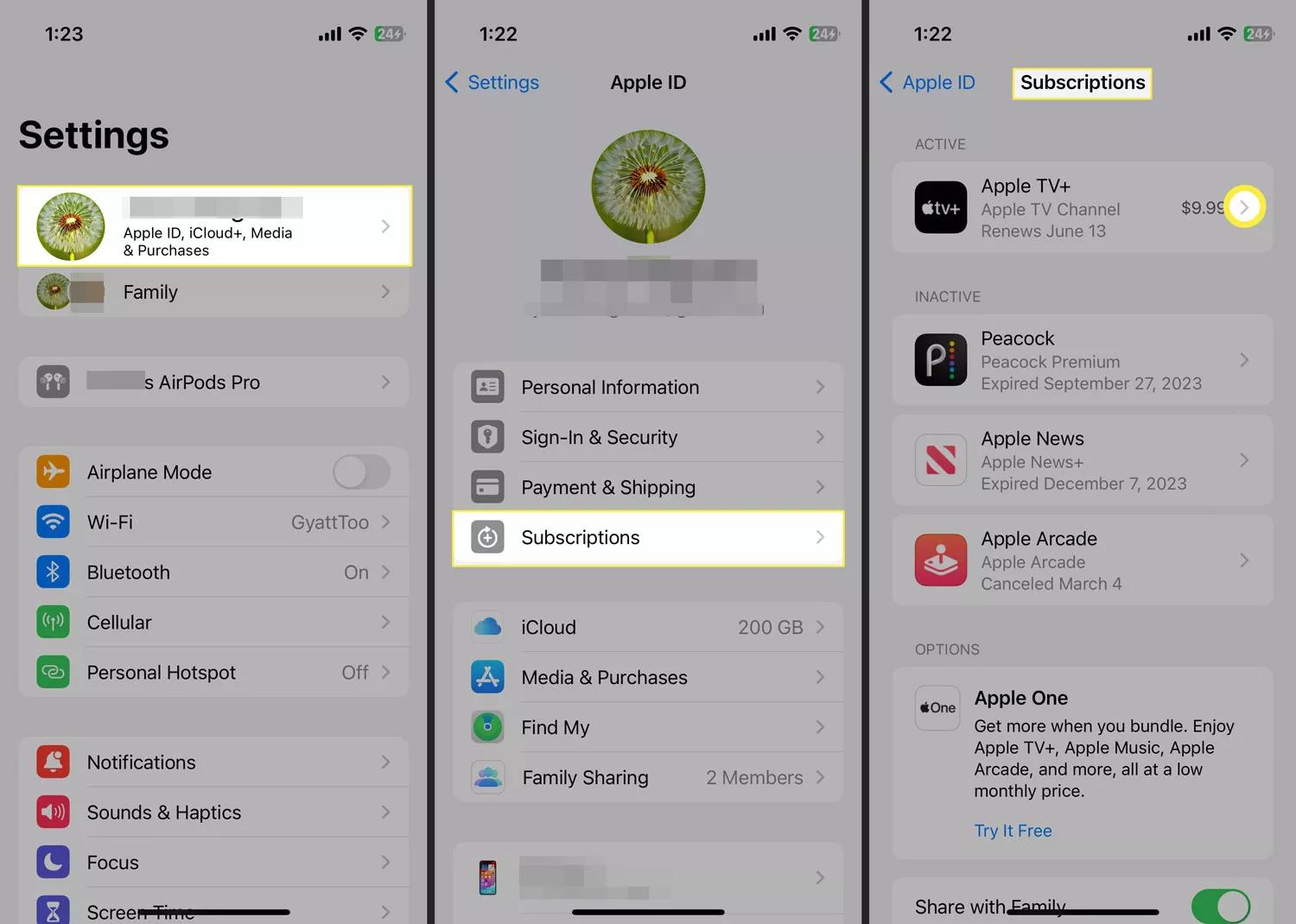
To stop Disney Plus on an iPad or iPhone, follow these steps:
Step 1. Go to Settings.
Step 2. Press your name.
Step 3. Click on Subscriptions and find Disney Plus.
Step 4. Press the "Cancel" button. Try to scroll down if you can’t see the choice.
How to Cancel Disney Plus on Android
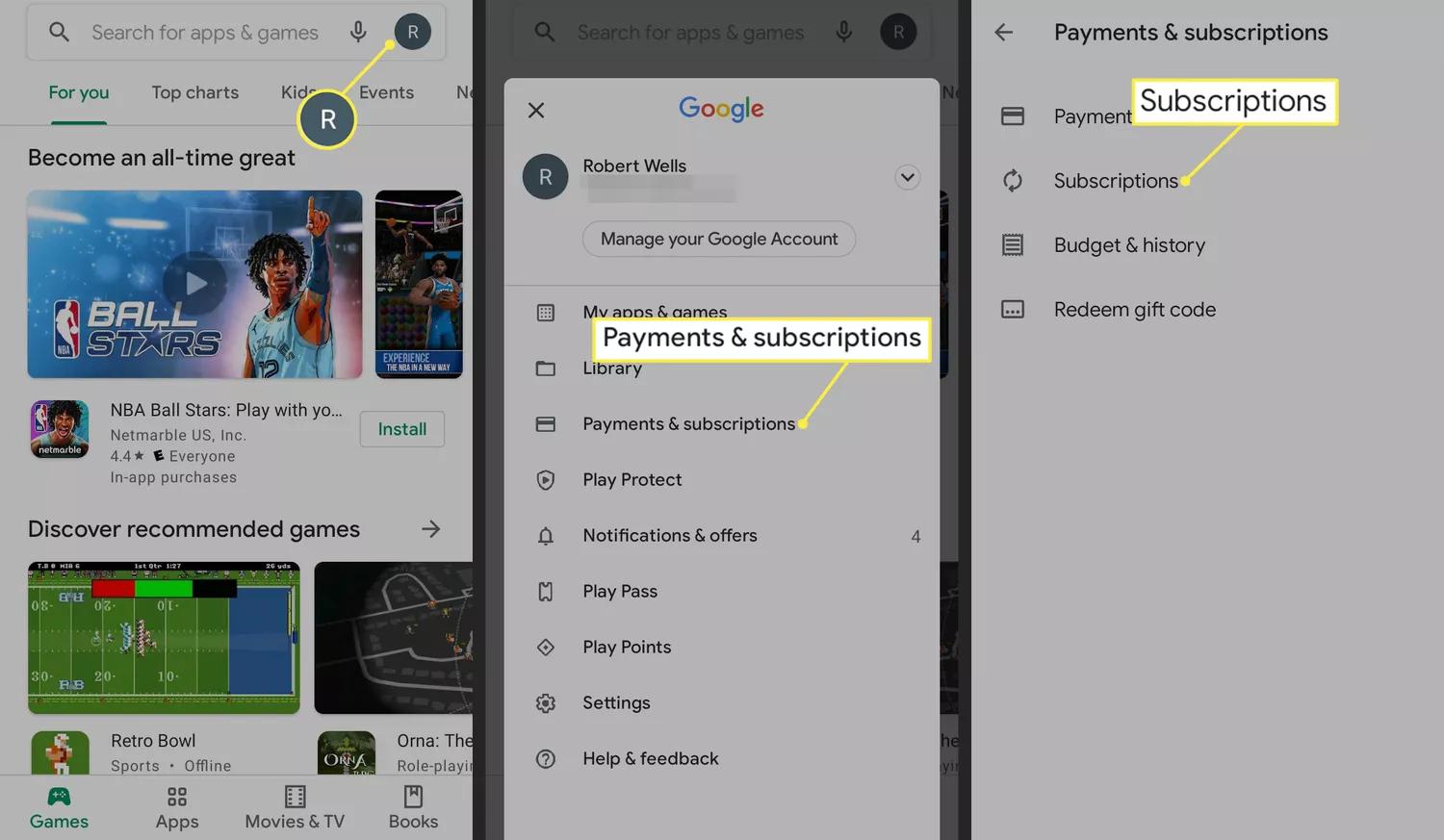
Follow these steps to cancel Disney Plus through the Google Play Store on your Android phone or tablet:
Step 1. Open up Google Play. Tap your profile icon.
Step 2. Click on Payments & Subscriptions, then Subscriptions.
Step 3. Find Disney Plus, and tap the "Cancel" button.
Then, you can just follow the steps given to finish the process.
How to Cancel Disney Plus via Amazon
You can add on a lot of services to Amazon Prime Video, such as Disney Plus, HBO, Starz, Paramount+ (formerly CBS All Access), and Showtime. You should know how to handle your Prime Video channels if you want to end your free trial or if you’re done watching all the shows you wanted to.
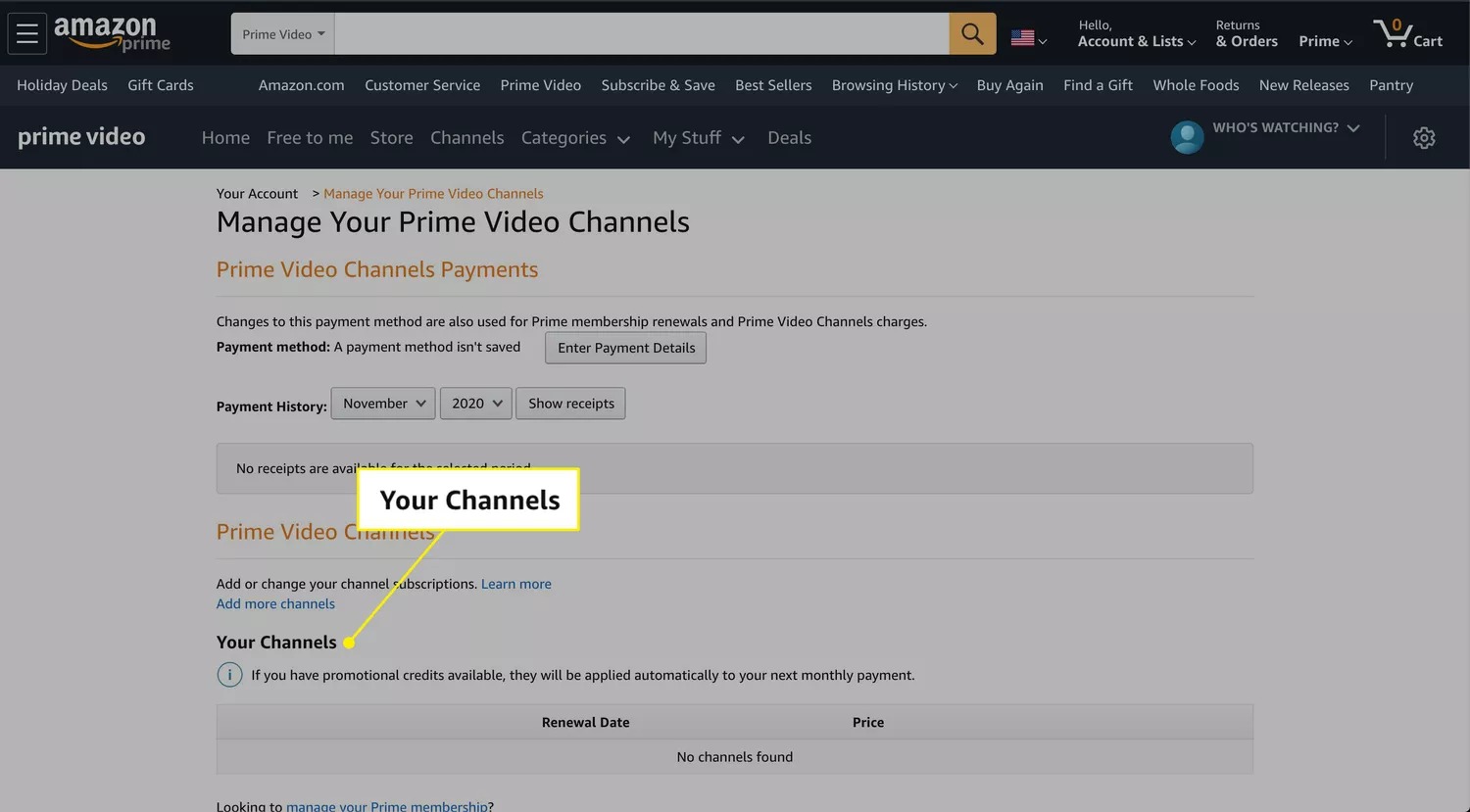
Step 1. Open the website and go to the page where you can manage your Prime Video subscription. If prompted, log in to your Amazon account.
Step 2. From in "Your Channels”, click on "Cancel Channel(s)" next to Disney Plus.
Step 3. In the box that comes up, confirm that you want to stop your subscription.
You can still watch the video channels after you stop until the end of your registration term. By canceling, you can make sure that Amazon doesn’t renew your account immediately on the due date. Unfortunately, you won’t get a refund if you quit, even if you haven’t used the service.
How to Cancel Disney Plus via Roku
The fastest and easiest way to cancel a Roku channel that you set up is through the Roku device itself.
Step 1. On your Roku remote, turn on your TV and pick out the show you want to stop.
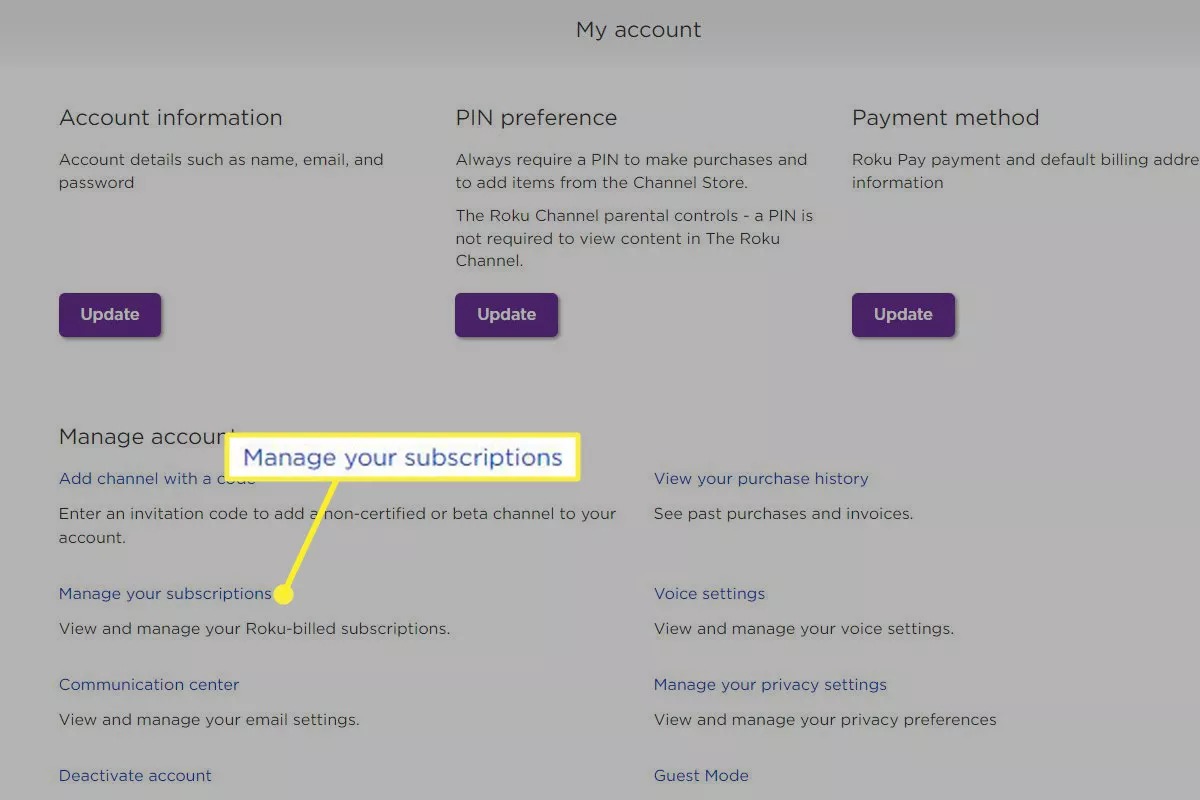
Step 2. To get to the options page, press the star button on your Roku control. Go to Manage Subscription, find Disney Plus, then simply tap Cancel Subscription.
If you don’t see the choice, you probably set up the channel somewhere else. You can cancel it instead by following these steps.
Step 1. Go to the Roku website and click on the "Sign In" or "Account" button in the upper right corner. Type in your password information and click "Submit".
Step 2. To manage your subscriptions, go to your account page and click on it.
Step 3. All of your active (and expired/canceled) channels will be shown on the subscriptions page. To stop Disney Plus, find it and click the "Cancel subscription" button next to it.
How to Cancel Disney Plus via TV
Step 1. Use a computer or phone browser to sign in to your Disney+ account.
Step 2. Go to Account, and under "Subscription", choose the Disney+ plan you have.
Step 3. Click on Cancel Subscription.
Please note that you can’t cancel your Disney Plus account if you use the Disney Plus app on a Smart TV or if your subscription comes from a different company.
What Happens After You Cancel Disney Plus?
You can use Disney+ until the end of your present subscription term.
Want to get your money back on your credit card? Disney+ doesn’t offer them for pricing services that have only been partially used, but at least there won’t be a fee to stop.
You will still be able to use your overall Disney account on all of Disney’s websites after you end your Disney+ account. This account is created when you sign up for Disney+. There’s no reason for you to delete this account, but you might still get marketing emails to it. Follow these steps to get rid of your Disney account for good:
Step 1. Go to the page for Disney’s privacy controls.
Step 2. Use the link under "Manage your registration account" to log in.
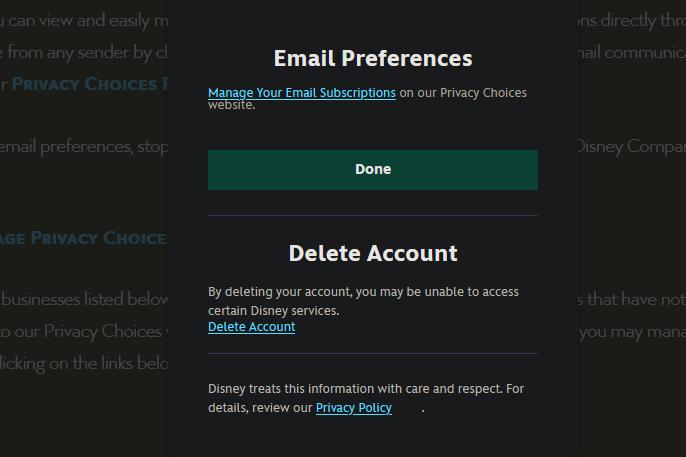
Step 3. On this page, you can change your notification settings, such as what emails you get and how often you get them. You can also delete your Disney account for good.
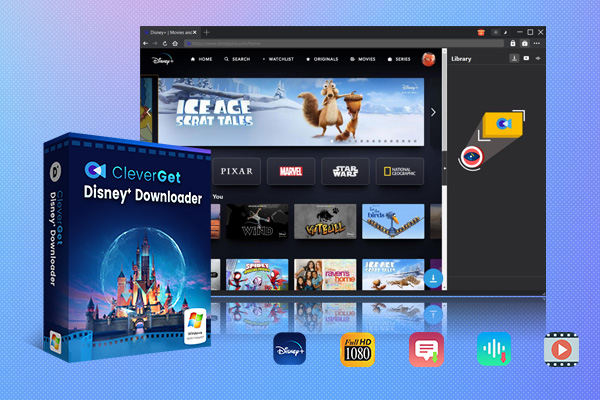
If you want to know how to download movies from Disney Plus after that, CleverGet Disney Plus Downloader is the tool I will suggest. This professional program outperforms its competitors because of its unique strengths. There is no limit on the number of files that can be downloaded, and it can download movies from most of the mainstream websites.
-
CleverGet Disney Plus Downloader
Professional Disney Plus video downloader to download on-demand videos like movies and series at 720P quality with selected subtitles and audio tracks.
- Download and convert Disney Plus video to MP4/MKV.
- Batch download TV episodes across seasons from Disney+.
Conclusion
Still can’t stop your Disney Plus subscription with all the methods above? Well, it’s time to seek help from the official support. The Disney Plus customer service team is working 24/7 to help you with any problems you may have.
I hope this general guide helps you and tells you how to end your Disney Plus account. If you change your mind, you can end your Disney Plus contract or free trial at any time, so rest assured!
-

HitPaw Video Enhancer Review 2026: Features, Performance, Pros & ConsLeia/2026-02-09
-
How to Get Disney Plus for Free (2026): Legit WaysLeia/2026-01-06
-
How to Cancel Your Disney Plus SubscriptionLeia/2025-12-25
-
How to Recover Your Instagram AccountLeia/2025-11-28
-
How to Get Rid of Ads on Paramount PlusLeia/2025-10-28
-
Is Discovery Plus Down & How to Check?Leia/2025-09-26
-
Peacock vs. Paramount Plus: Which One is BetterLeia/2025-08-18
-
Why Does YouTube Keep PausingLeia/2025-07-16
-
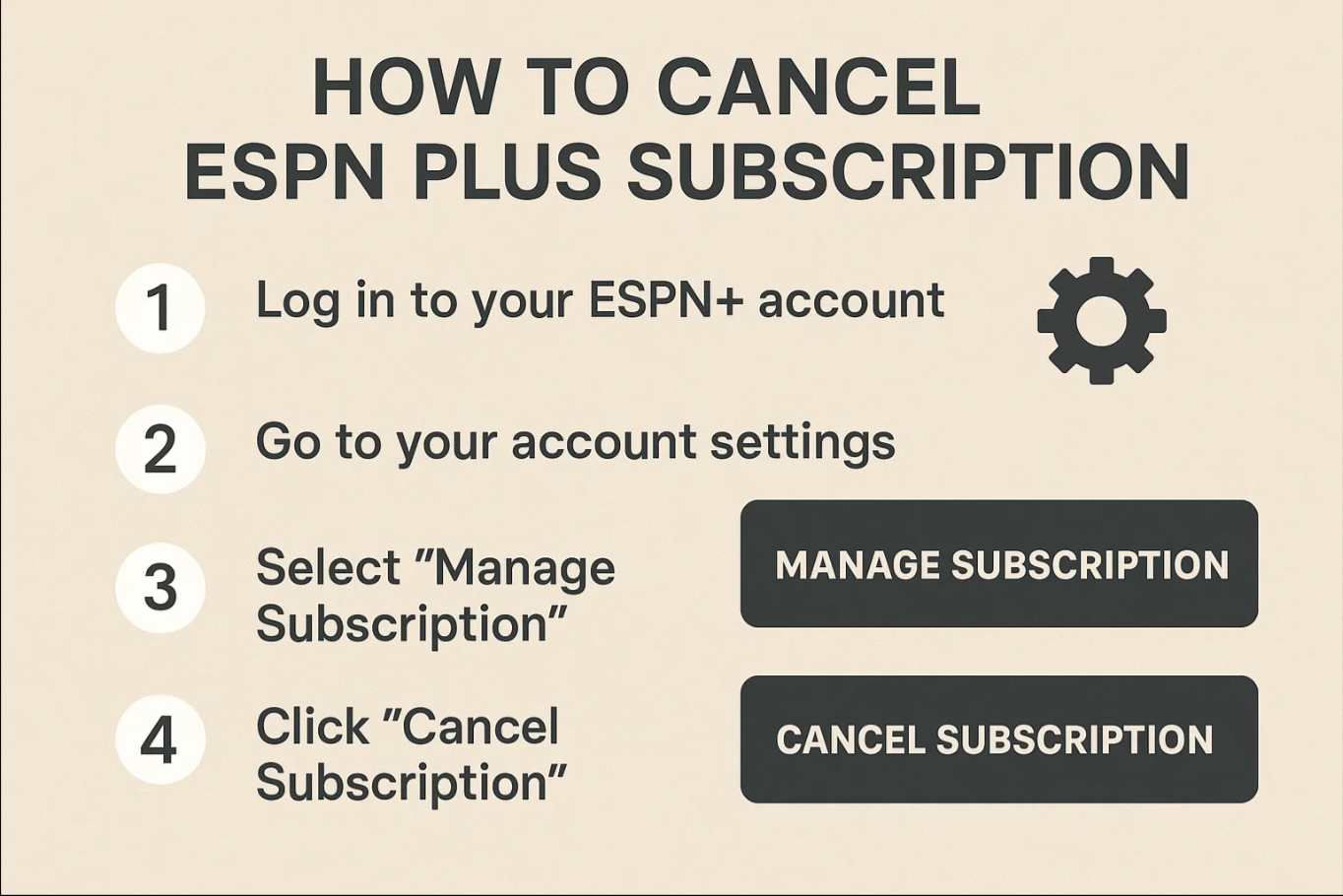
How to Cancel ESPN Plus Subscription in 2026: Step-by-Step GuideLeia/2025-06-26
-
Best Soap2Day Alternatives: Top Websites Like Soap2DayLeia/2025-05-16
-

Vegamovies Site: Best Alternatives to Watch Hindi Dubbed MoviesVinho/2024-02-18
-

10 Best Websites Like KissAsian to Watch Asian Dramas FreeMax Will/2025-04-18
-

Where to Watch High School DxD Uncensored? – 100% WorksPatrick/2024-08-06
-

10 Free Sites Like Netnaija for Nollywood Movies DownloadMax Will/2025-04-30
-

Best PrMovies Alternative Sites for Latest Bollywood Movies & Web Series DownloadMax Will/2025-04-29
-
HitPaw Video Enhancer Review 2026: Features, Performance, Pros & ConsLeia/2026-02-09
-

Top 10 Sites to Watch Pinoy Movies Free OnlineLumi/2024-11-08
-

Top 25 Sites for Free HD Movies Direct DownloadLumi/2024-08-23
-

Rent Your Favorite Movies & TV Series from YouTube Store Todayvideo/2022-11-22
-
Free Christmas Cards Templates: Create Xmas Cards for Sending to Your Loved Onesvideo/2024-07-22