Last updated on 2026-02-09, by
HitPaw Video Enhancer Review 2026: Features, Performance, Pros & Cons
Summary:
Wonder how HitPaw can make your photos and videos look better? This review of the 2026 HitPaw goes into great details about how it works, including both its pros and cons.
Outline
Having trouble with videos that are blurry or don’t have enough resolution to capture your best moments? Not happy with the way the images look? HitPaw can help you fix these issues with advanced AI-powered tools. How does it actually work? What effects could it bring? Now let’s read on to find out more!
What Is HitPaw?
First of all, HitPaw is a set of multimedia tools made for regular creators. HitPaw is designed to do things like improving the quality of videos/images, compressing them, getting rid of watermarks, and changing formats without making you "learn the software" first.
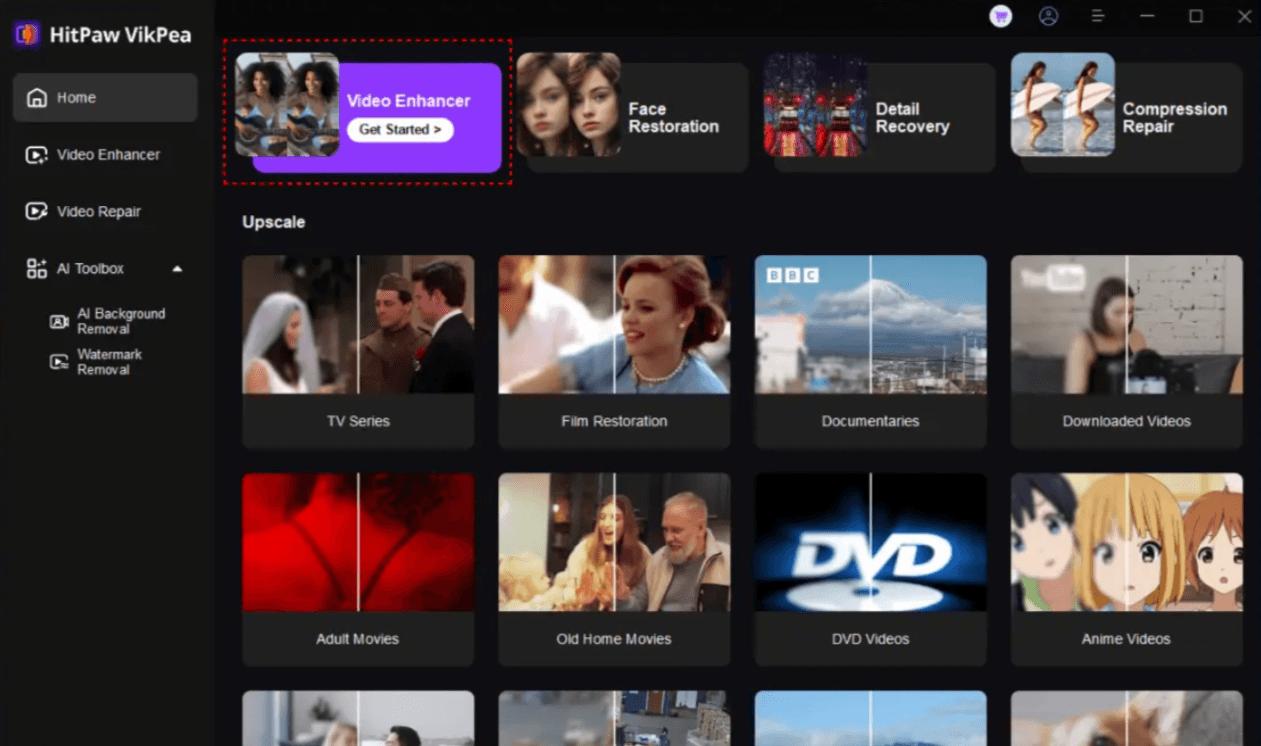
What made HitPaw stand out to me is that it doesn’t try to be a professional studio that does everything. In fact, that’s one of its strengths. It was made for people who need to get things done quickly.
Key Features of HitPaw
You start to notice certain pain points that HitPaw’s features are made to solve as you use it more. The video enhancement tools, especially the AI upscaling tools, are likely the most talked-about feature. These tools can sharpen low-resolution footage and get rid of noise with surprisingly little effort.
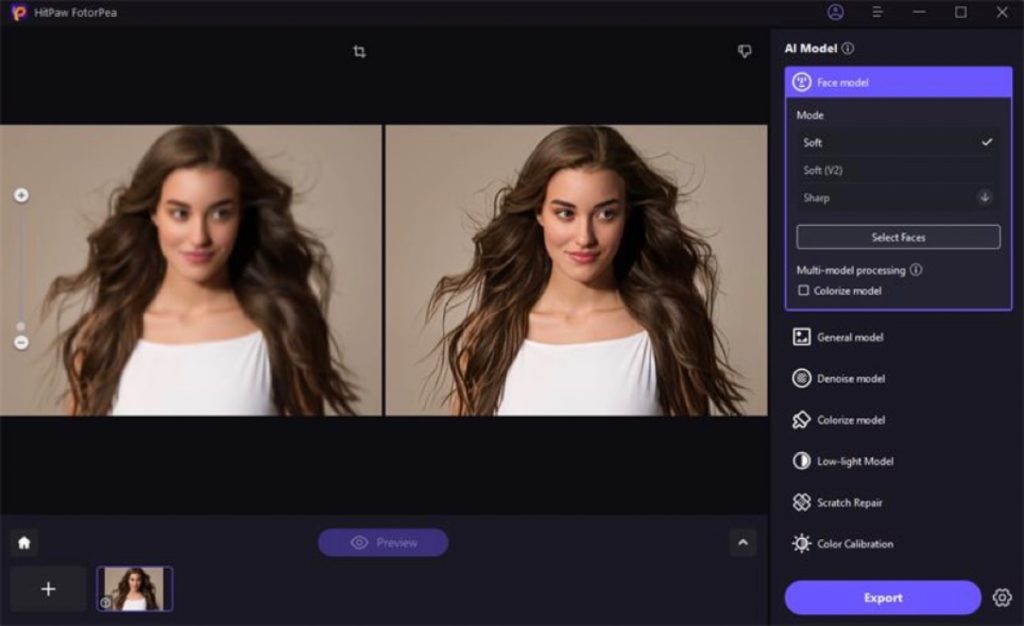
HitPaw FotorPea uses practical photo editing features. It allows you to choose from 7 mind blowing AI models that enhance the overall quality of the images.
Here’s a list of its overall models and key features for your reference:
|
Category |
Model |
Description |
|
Video Enhancer |
General Denoise Model |
Removes noise from videos to improve their clarity and quality. |
|
Detail Recovery Model |
Restores texture and detail in blurry low/medium resolution videos. |
|
|
Face Model |
Enhances portrait videos with sharpening, softening, and fast modes for facial features. |
|
|
Video Quality Repair Model |
Removes compression artifacts and noise, thereby improving overall video quality. |
|
|
Animation Model |
Converts old or blurry anime/cartoon videos to high definition. |
|
|
AI Color |
Colorize Model |
Turns natural colors to black and white or greyscale video. |
|
SDR to HDR |
Upgrades SDR videos to HDR with brighter colors and more details. |
|
|
Color Enhancement Model |
Increases color vibrancy for a visually striking effect. |
|
|
Low-light Enhancement Model |
Improves brightness and contrast, so dark videos appear clearer and brighter. |
|
|
Video Repair |
Video Repair |
Fixes flickering, unplayable videos, screen loss, lag, and video sound. |
|
AI Toolbox |
Retouch |
Removes selected watermarks from videos. |
|
BG Remover |
Allows exported videos to have a transparent or blurry background. |
|
|
Frame Rate Enhancement Model |
Increases frame rate by 2x or 4x for smoother motion. |
|
|
Stabilize Model |
Makes shaky footage more stable. |
Performance and Output Quality Tests
In this part, I’ll explain how well HitPaw Video Enhancer AI actually works. The tests are meant to give you an comprehensive look at how the software does different tasks.
Setup Reference
GPU: NVIDIA GeForce RTX 4070
CPU: AMD Ryzen 7 5700G with Radeon Graphics
Let’s see how’s the actual process and quality improvement in different modes now.
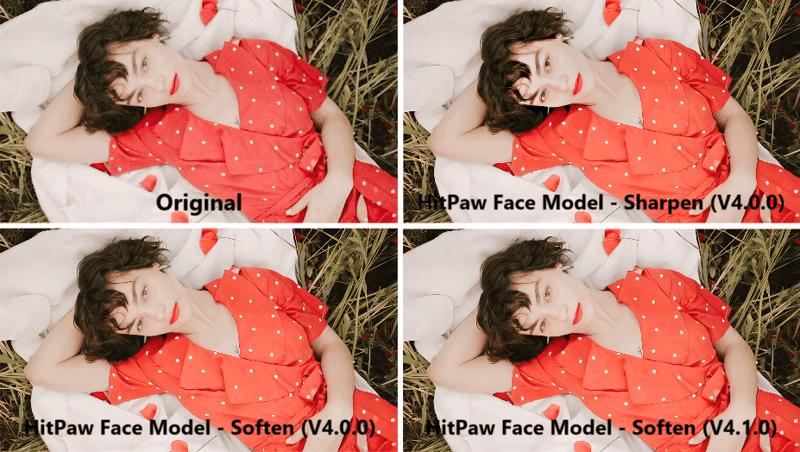
Face Model
Sharpen and soften are the two options that HitPaw’s Face Model has. Each is good in its own way. The comparing pictures show that by increasing the contrast, the Sharpen mode makes textures and facial features clearer. It sometimes works well, but on the other hand, it can also make the picture look less natural with too much emphasis on the textures.
When you use the Soften mode, pictures look smoother and more airbrushed, since there is less texture and contrast.
Animation Model
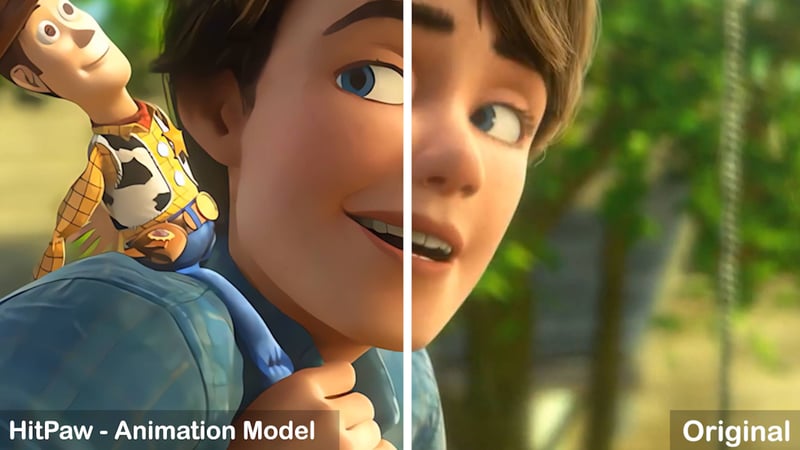
You can see right away what the Animation Model does: Characters and objects get sharper so you can see more details; colors appear brighter so scenes feel more alive; and noise and grain is reduced so videos are smoother and cleaner overall.
Colorize Model
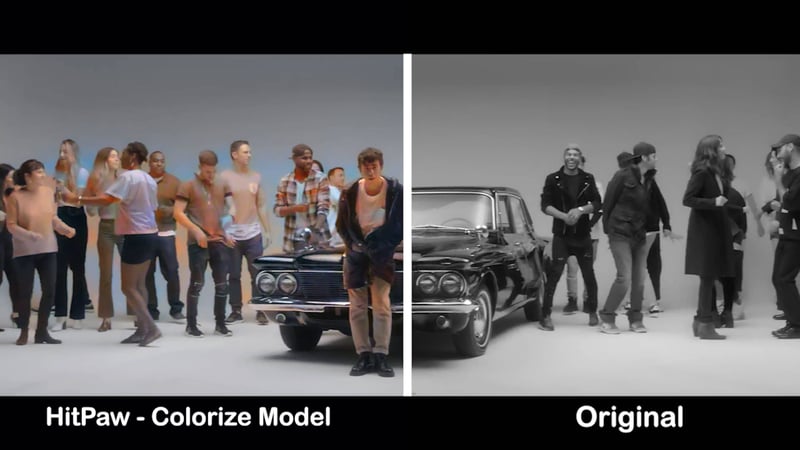
With the Colorize Model, you can give black-and-white videos bright new colors. In the meantime, it could cause color processing to be uneven or skewed in some places.
Low-light Enhancement Model
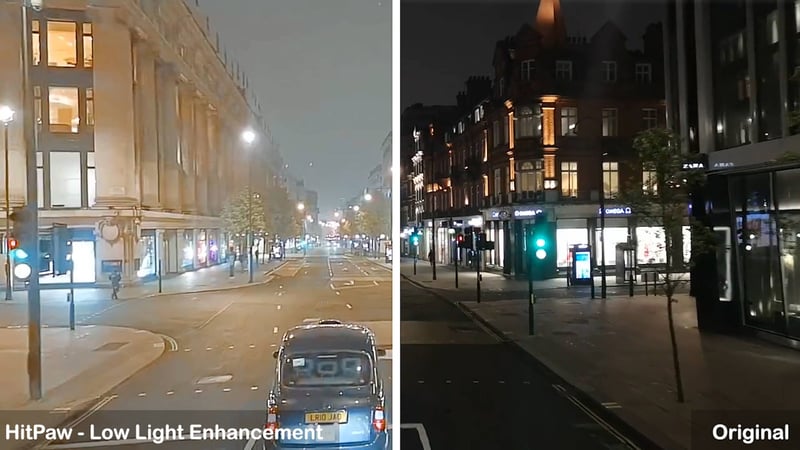
HitPaw also made changes to its Low-light Enhancement Model in version 4.1.0. The processing speed is much faster now than it was in version 4.0.0, but the visual results are still the same.
SDR to HDR
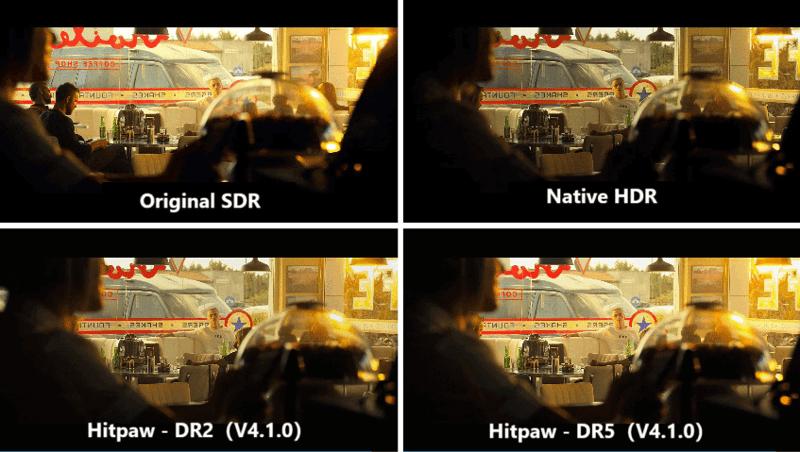
The Dynamic Range (DR) value makes HitPaw’s output much brighter as it goes up, though it also makes the colors and brightness too high for HDR. When the DR setting is raised, the video tends to look more like SDR than HDR.
Pricing Plans and Licensing Options
Is HitPaw free? Unfortunately, HitPaw is a paid tool, but you can try it out for free with some features disabled! During the HitPaw free trial, users can see what parts of their videos the software has improved, but they won’t be able to export the whole video until they pay for a license. This trial introduces you to the tool’s basic features, so you can get a sense of its features.
Please note each HitPaw Video Enhancer license is valid for use on one PC only.
|
Version |
Platform |
1 Month Price |
1 Year Price |
Perpetual Price |
|
Standard |
Windows |
$42.99 |
$99.99 |
$349.99 |
|
Standard |
Mac |
$69.99 |
$109.99 |
$349.99 |
|
Pro |
Windows |
$52.99 |
$119.99 |
$399.99 |
Pros and Cons of HitPaw
HitPaw Video Enhancer is a great program with powerful functions, but it can’t be perfect in every way. Before you buy it, take a look at its weakness so you can be prepared.
|
Pros |
Cons |
|
– Several AI models address various video issues. – Supports batch processing of multiple videos. – Numerous export format options. |
– Too many available features. – Long processing times for high-resolution upscaling. – Some AI models give inconsistent results. – Manual output settings are limited. – For casual users, the price is relatively high. – The free trial restricts previews and disables exports. |
Best HitPaw Alternative
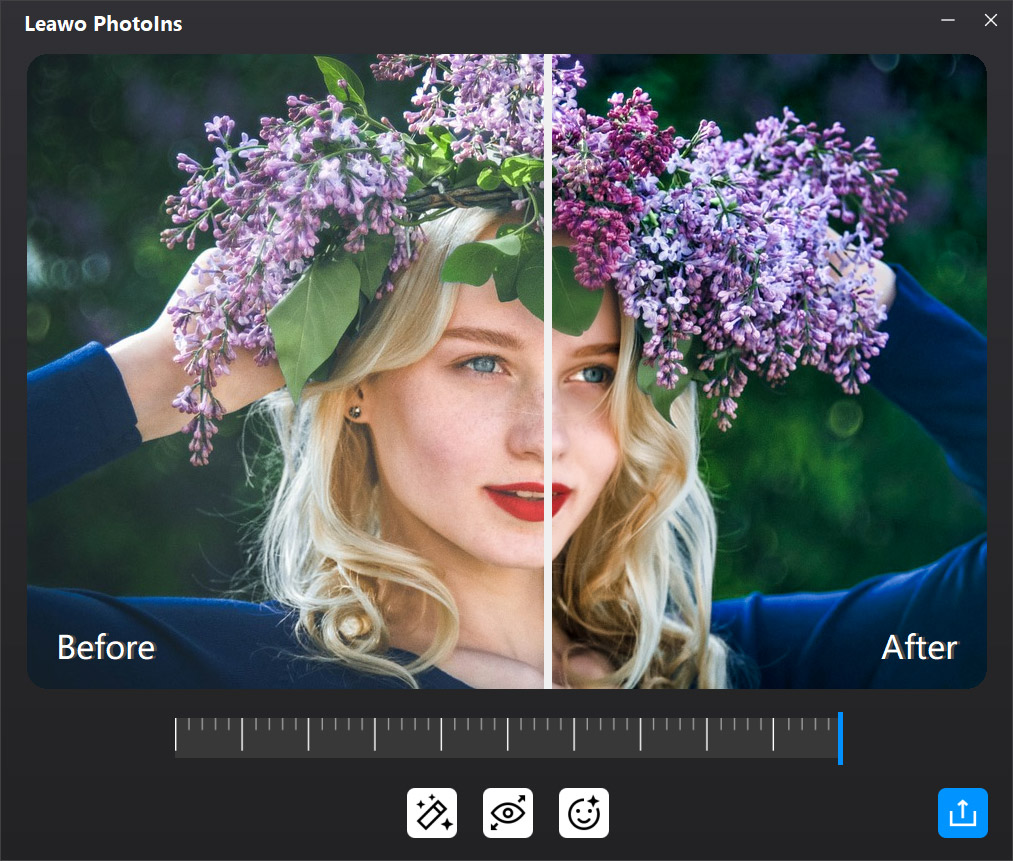
For users focused on portrait enhancement and photo retouching, Leawo Photo Enhancer provides a more streamlined and purpose-built experience compared to HitPaw.
Instead of offering many general AI models with inconsistent results, Leawo focuses on portrait-specific enhancement, delivering more natural-looking improvements with fewer adjustments required.
Key advantages over HitPaw:
Specialized AI portrait enhancement for skin smoothing, blemish removal, and facial refinement
More consistent results for human faces, especially in close-up portraits
Simpler workflow with fewer confusing model choices
Ideal for social media photos, profile images, and personal portraits
Is HitPaw Safe and Legit?
If you wonder is HitPaw legit, the answer is yes. You can be confident that HitPaw Video Enhancer won’t bring you any viruses, malware, or spyware. The program doesn’t steal your information, or disclose any private information from your videos.
Conclusion
After reading this review of HitPaw, you’ll have a better idea of what it can do. HitPaw can be used to make videos and images better, but it can be annoying that it takes a long time to process and gives mixed results.
Anyway, you can find alternatives like Leawo Photo Enhancer in the guide. Pick the right one for your needs, and have fun editing your videos and photos!
-
HitPaw Video Enhancer Review 2026: Features, Performance, Pros & ConsLeia/2026-02-09
-

How to Get Disney Plus for Free (2026): Legit WaysLeia/2026-01-06
-

How to Cancel Your Disney Plus SubscriptionLeia/2025-12-25
-

How to Recover Your Instagram AccountLeia/2025-11-28
-
How to Get Rid of Ads on Paramount PlusLeia/2025-10-28
-
Is Discovery Plus Down & How to Check?Leia/2025-09-26
-
Peacock vs. Paramount Plus: Which One is BetterLeia/2025-08-18
-
Why Does YouTube Keep PausingLeia/2025-07-16
-

How to Cancel ESPN Plus Subscription in 2026: Step-by-Step GuideLeia/2025-06-26
-
Best Soap2Day Alternatives: Top Websites Like Soap2DayLeia/2025-05-16
-

Vegamovies Site: Best Alternatives to Watch Hindi Dubbed MoviesVinho/2024-02-18
-

10 Best Websites Like KissAsian to Watch Asian Dramas FreeMax Will/2025-04-18
-

Where to Watch High School DxD Uncensored? – 100% WorksPatrick/2024-08-06
-

10 Free Sites Like Netnaija for Nollywood Movies DownloadMax Will/2025-04-30
-

Best PrMovies Alternative Sites for Latest Bollywood Movies & Web Series DownloadMax Will/2025-04-29
-
HitPaw Video Enhancer Review 2026: Features, Performance, Pros & ConsLeia/2026-02-09
-

Top 10 Sites to Watch Pinoy Movies Free OnlineLumi/2024-11-08
-

Top 25 Sites for Free HD Movies Direct DownloadLumi/2024-08-23
-

Rent Your Favorite Movies & TV Series from YouTube Store Todayvideo/2022-11-22
-
Free Christmas Cards Templates: Create Xmas Cards for Sending to Your Loved Onesvideo/2024-07-22